
Create a master list of your companies services and the material and parts used, and the price associated. You can even create categories to stay organized.
What are the benefits?
The price list keeps your organization on the same page regarding pricing, which reduces costly mistakes. Also, it saves valuable time because there's no need to type line items anymore manually. It also provides your field techs with a tool they can use to bid and upsell jobs accurately
Getting started
To get started, select More from the top navigation bar than choose Price list from the menu, .
Manage Industries and Categories:
1) You can organize your price list by industries and categories. The list of industries is located on the left side of the page. Example: Appliances is the industry while parts and services are the categories.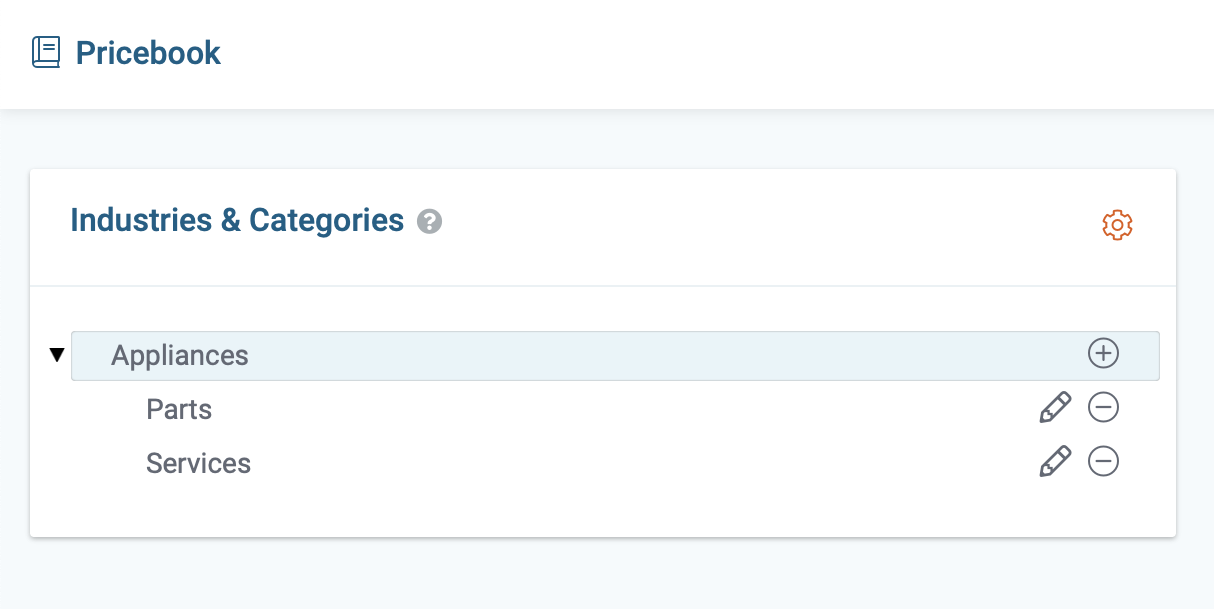
Select industries
1) You can add or remove an industry by clicking on the gear icon located at the top right corner of the industry & category list.
2) A pop-up box will open. Select the industries that you want to include in your price book. After making your selection, click on the green-colored “Save” Button in this box.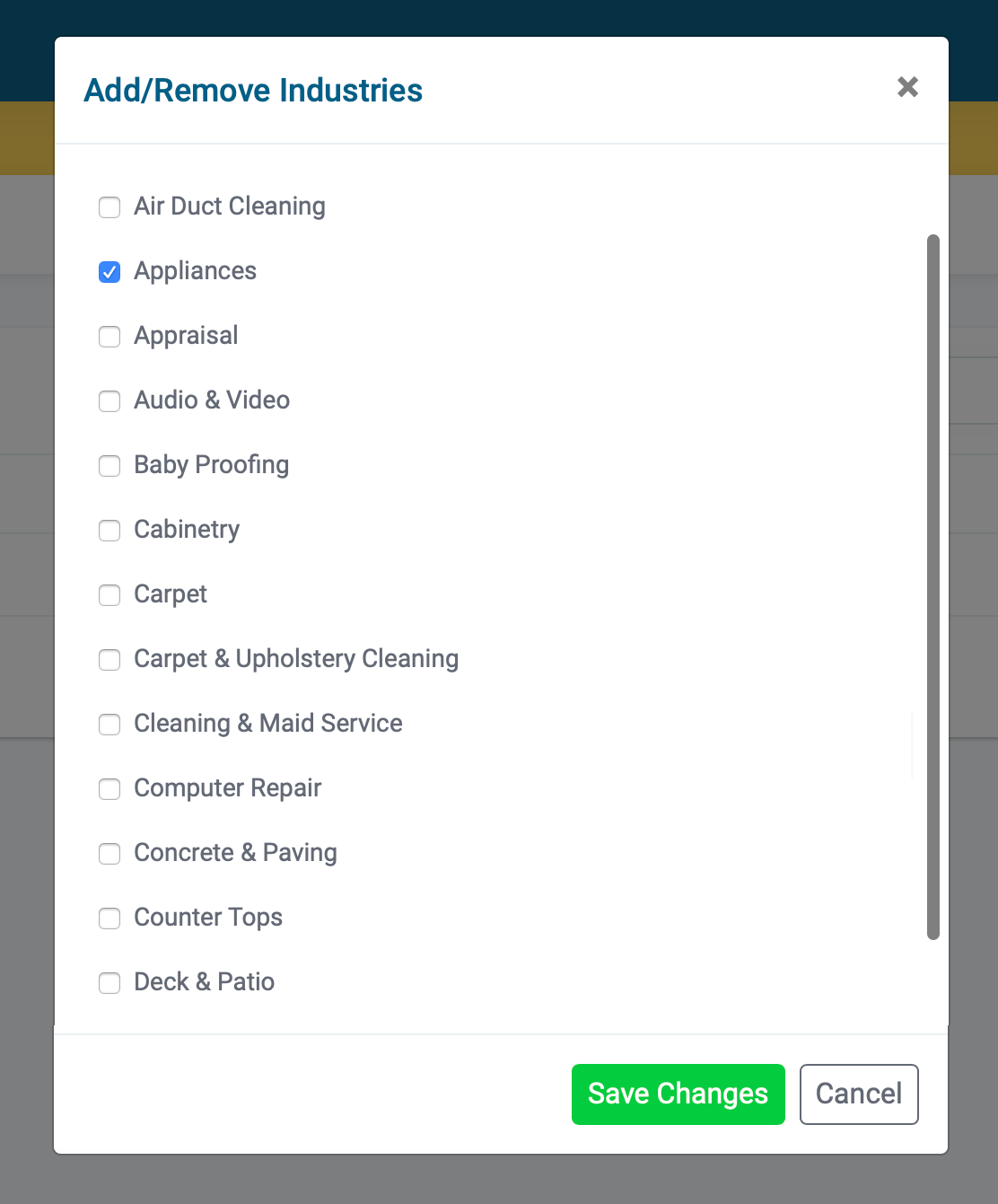
Create categories
1) You can create unlimited categories for any industry. To add a new category click on the plus sign in front of that industry. A pop-up box will open.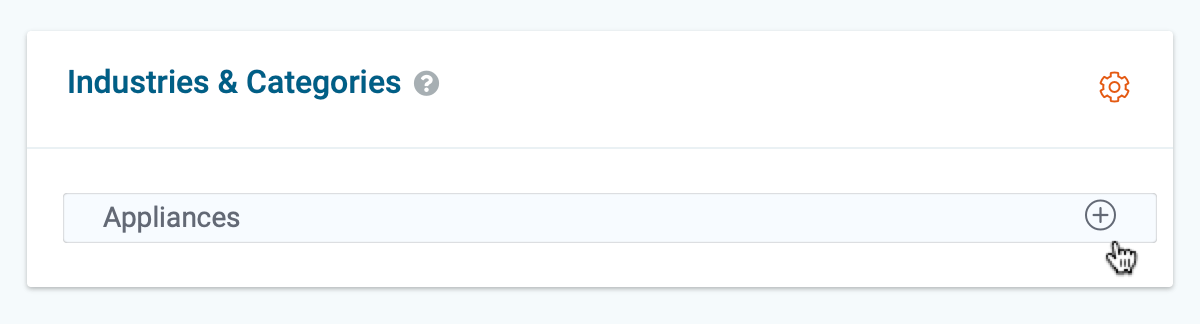
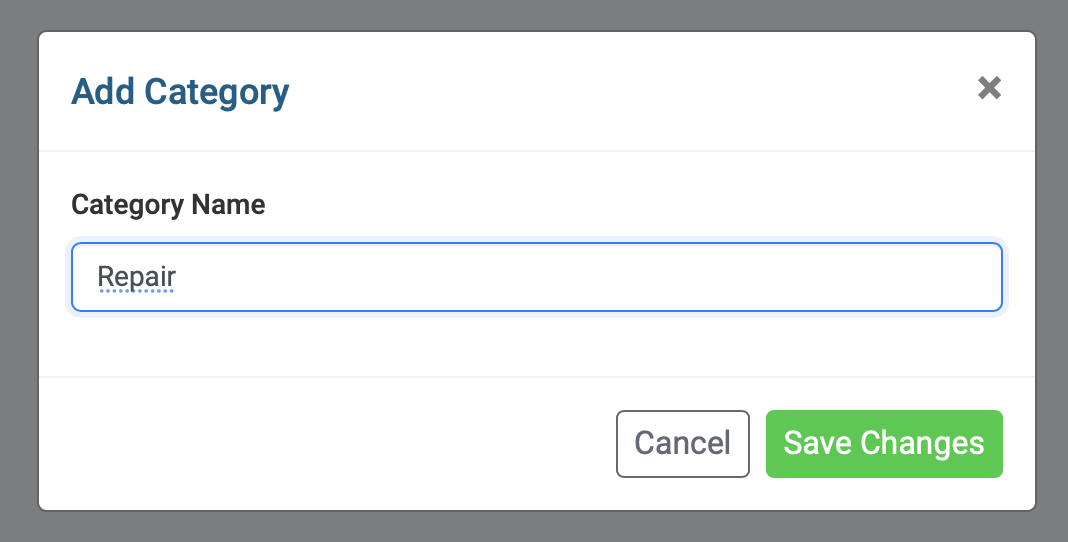
2) Add the name of your new category in this box and click on the Save button.
View categories
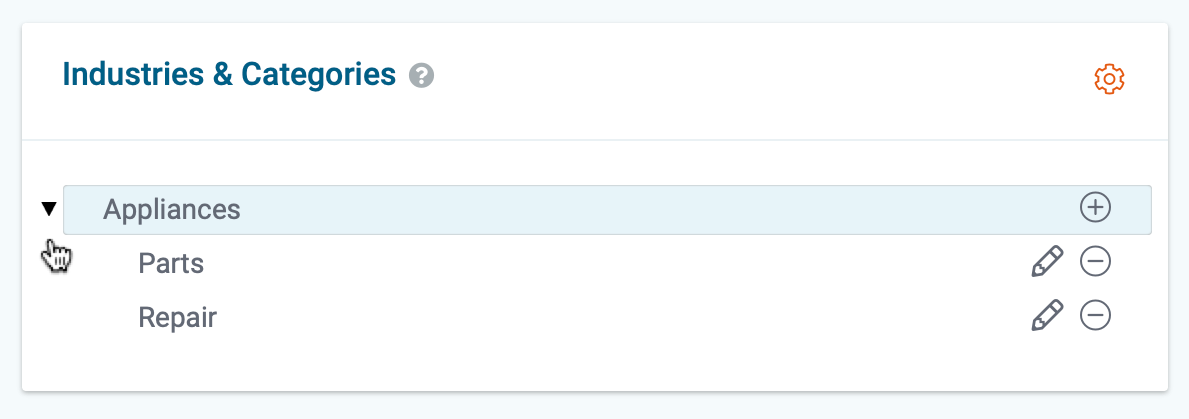
1) To view the categories of each industry, click on the small arrow located to the left of the industry name.
Edit Categories
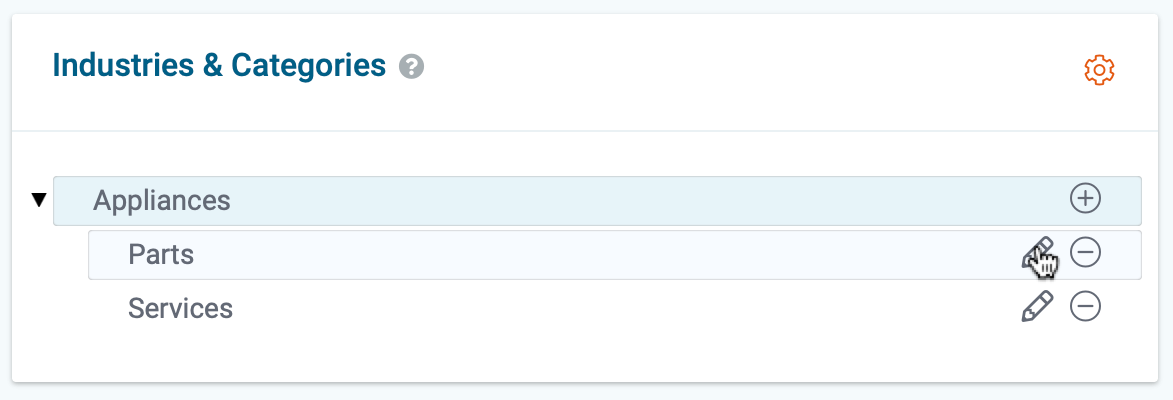
1) To edit a category, click on the pencil icon located to the far right of the category name.
Delete categories
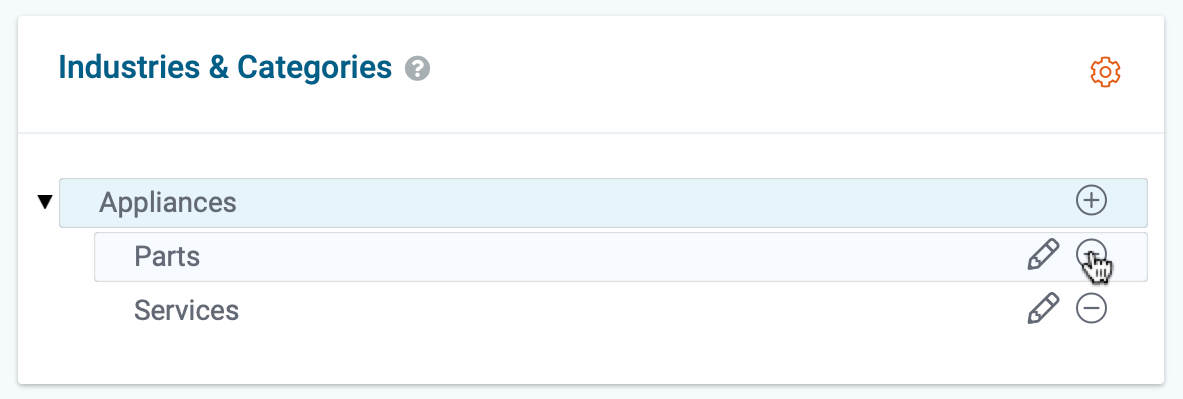
1) If you want to delete a category, click on the minus sign to the far right of the category name.
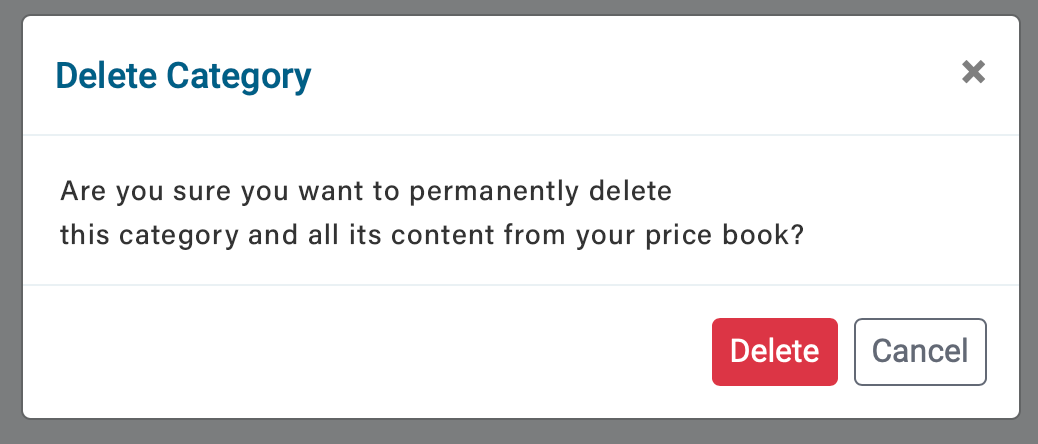
2) A pop-up box will open asking you to confirm your choice. Click on the Delete button to remove the category from your price book.
Manage Items
1) The list of items and their prices are located on the right side of the page. There is a separate list for every category. Click on the category name to display the items.
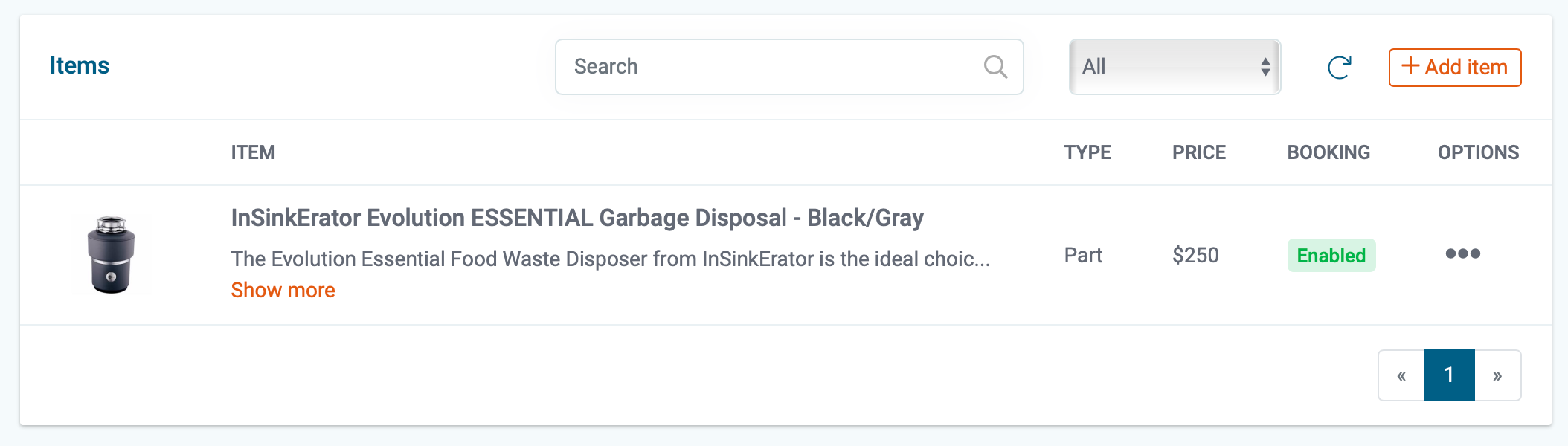
Add new items
1) To add a new item to the list, click on the Add item button on the top right corner of the page.
2) Now, add all the information about the item including the price, description, and image. next, select the category where the item should appear.
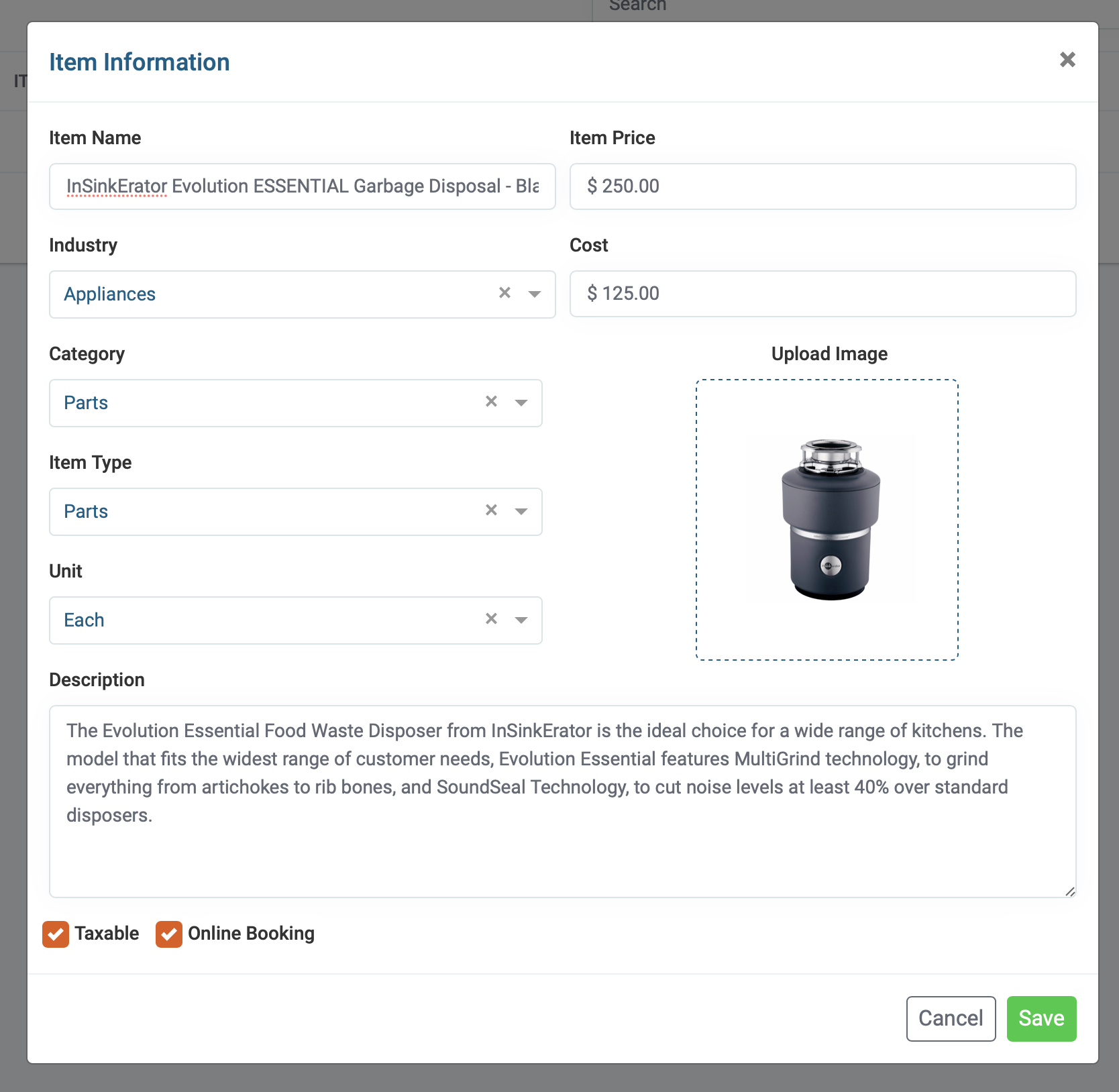
3) Check the “Taxable” box if the item is taxable.
4) Check the “Online booking” box if you want this item to appear on your online booking page.
Locate Items
1) You can locate items by using the search bar or look for specific items by type from the drop-down menu.
Archive an item
1) You can remove an item from your price list by clicking on the three-dots located to the right of the item, then select archive. The item can be restored if needed.
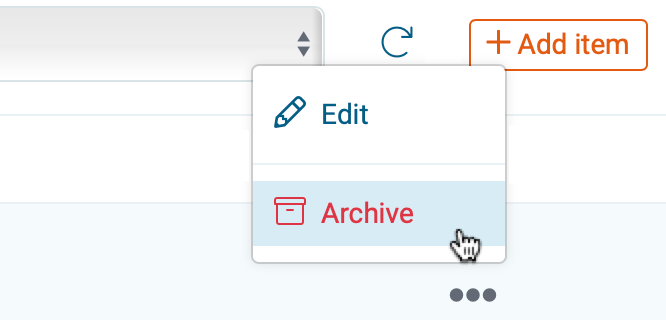
Restore an item
1) If you want to restore an item click on the restore icon in the right upper corner of the item section.
2) Next, you will see a list of the item that are archived. Select the three dots to the right of the item you wish to restore then click restore.
