
Step By Step Guide
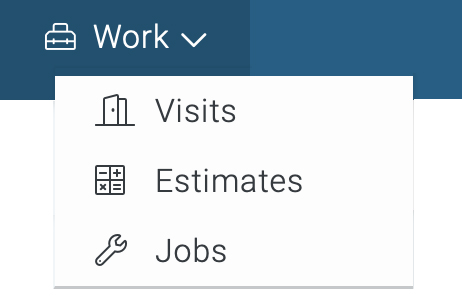
1) To generate an invoice, navigate to the job section by clicking the "work" link located in the top navigation bar then choose "Jobs" from the drop-down menu.
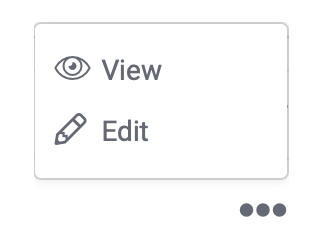
2) Now that you're in the job section, search and locate the job to wish to generate an invoice for, then click on the three dots located on the far right side of the page. Next, choose the view option.
3) Now click on the Action button on the upper right corner of this page and click on Generate Invoice.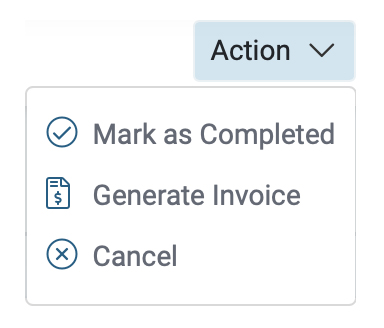
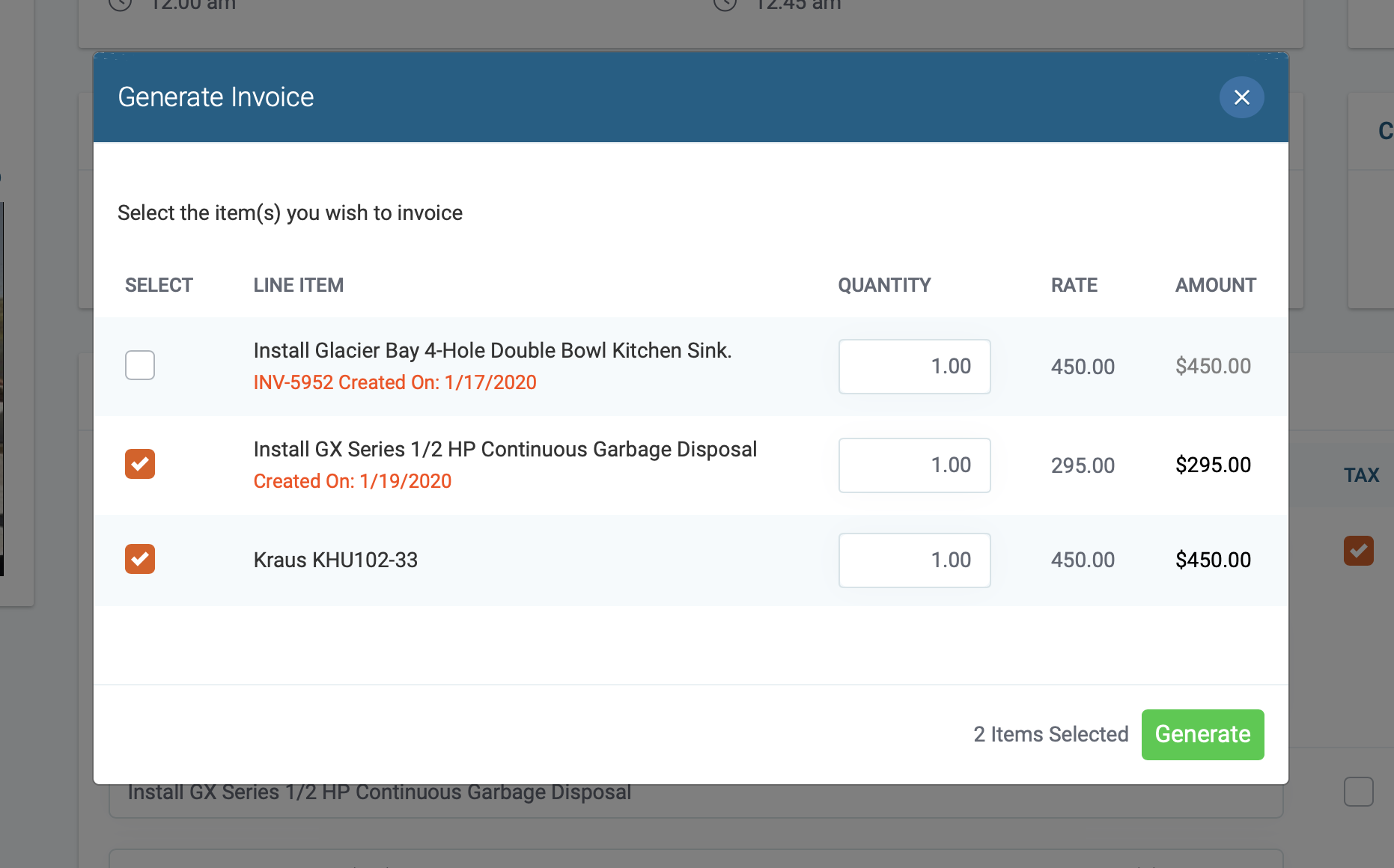
3) Next, select the line items you wish to invoice and click the button labeled "Generate".
Note: You can generate multiple invoices for the same job. This is handy if you have a job that ongoing, and you need to bill the customer at different stages of the job cycle.
A new page will open displaying the invoice. All Done!
How to change the invoice Number
Up in the top left corner, you will see the invoice number, if you click on the gear icon to the right you can change the invoice number. If you click on the light bulb icon it will display the job number the invoice is related to.

How to get paid
There are four ways to get paid. (1) Take payment on site. (2) Email the invoice, which contains the option to pay online. (3) Print and mail the invoice then manually enter it in the system when it arrives. (4) Take a payment over the phone then manually enter it in the system.
Take payment on site
1) First, click on the action button located in the upper right corner top of the invoice and choose "make payment" from the drop-down menu.
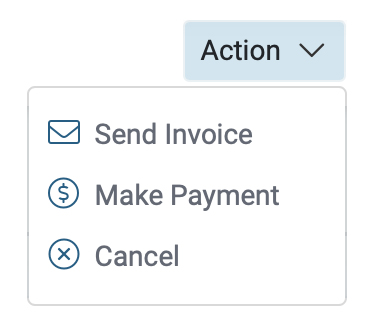
2) Next, choose the payment type and enter the required information, and click the pay button when you're done. A receipt will be automatically sent if you leave the "notify customer" box checked.
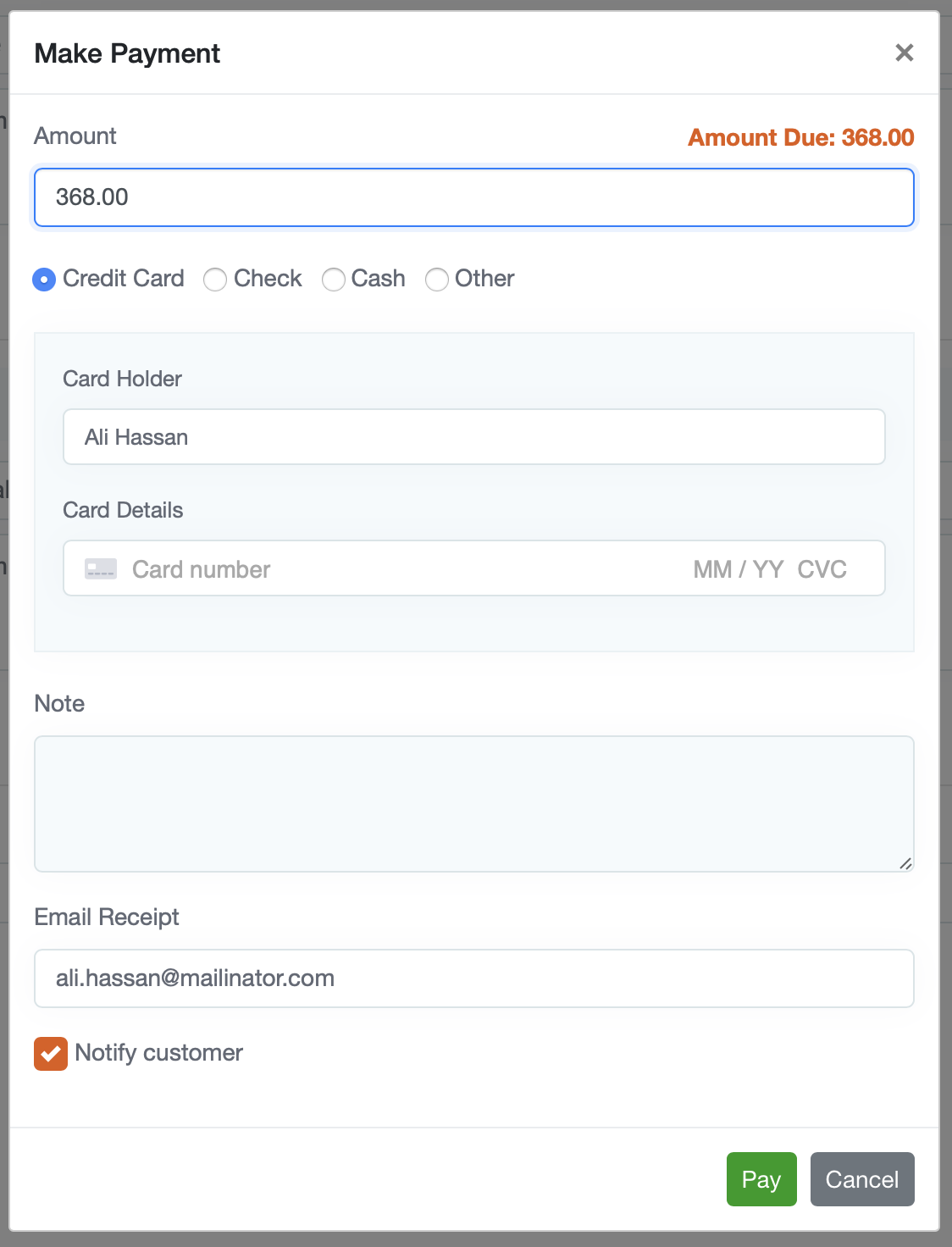
Once the payment has been accepted the invoice status will automatically update as paid.

Email the invoice
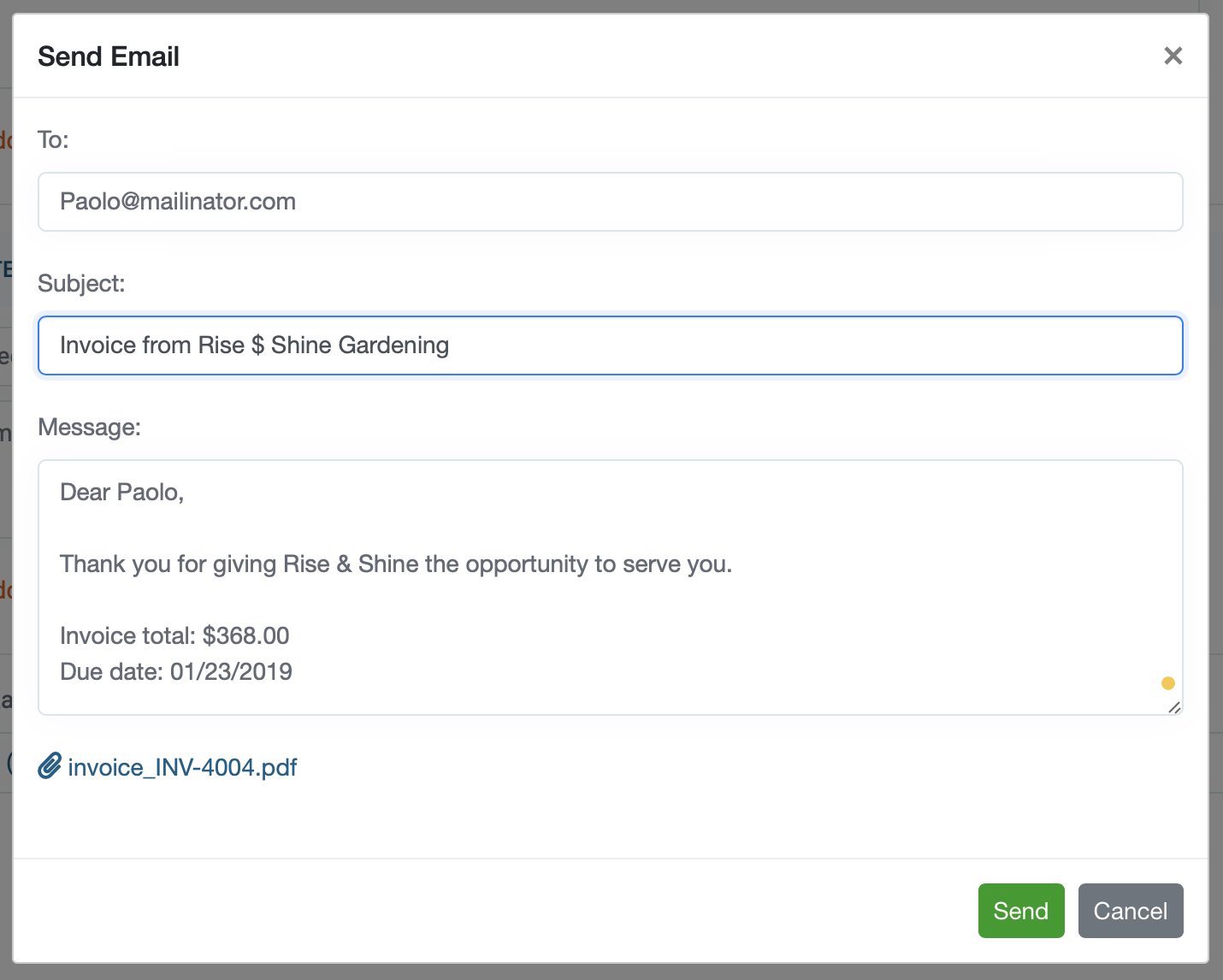
3) You can e-mail the invoice to the customer by clicking on the action button located in the upper right corner of the invoice and choose "send invoice" from the drop-down menu.
4) A new window will open populated with the customer's information. You can modify the message if you feel its necessary. The e-mail will contain a link so payment can be made online. Once payment is processed the invoice status will change to paid, and the customer will automatically receive a receipt.
Print and Mail Invoices
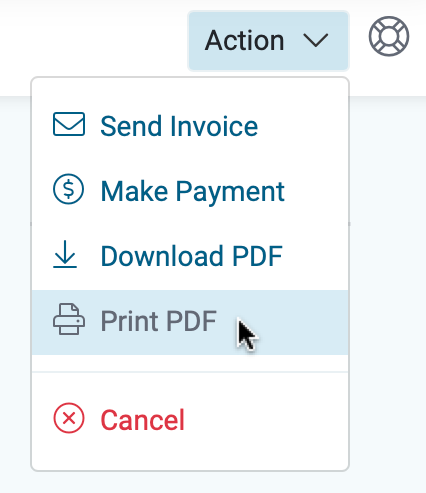
5) You can print the invoice by clicking on the PDF tab located in the upper left corner of the invoice page, then click on the "Print PDF" located in the action drop-down menu. You can download a copy as well.

Enter a Mail or Phone Payments
If you receive payment through the mail or over the phone enter it manually by choosing the "make payment" option from the Action drop-down menu then chose. Once you manually enter the payment the invoice status will update as paid.