
Stay organized and informed with notes and attachments. You can attach related documents, for example, before and after Images, notes, agreements, receipts, and more. This section will go over how to add, remove, and email attachments.
Step By Step Guide
1) First, click on the invoices section located in the top navigation.
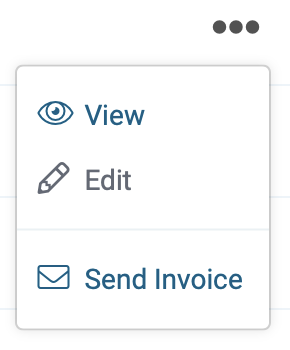
2) Now you're in the invoice section. Next, search and locate the invoive, then click on the three dots located to the far right side, and choose Edit from the menu.
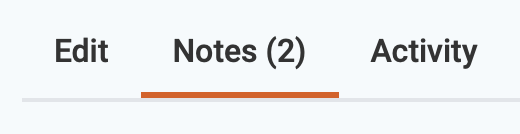
3) Click on the notes tab located on the upper left side of the page.
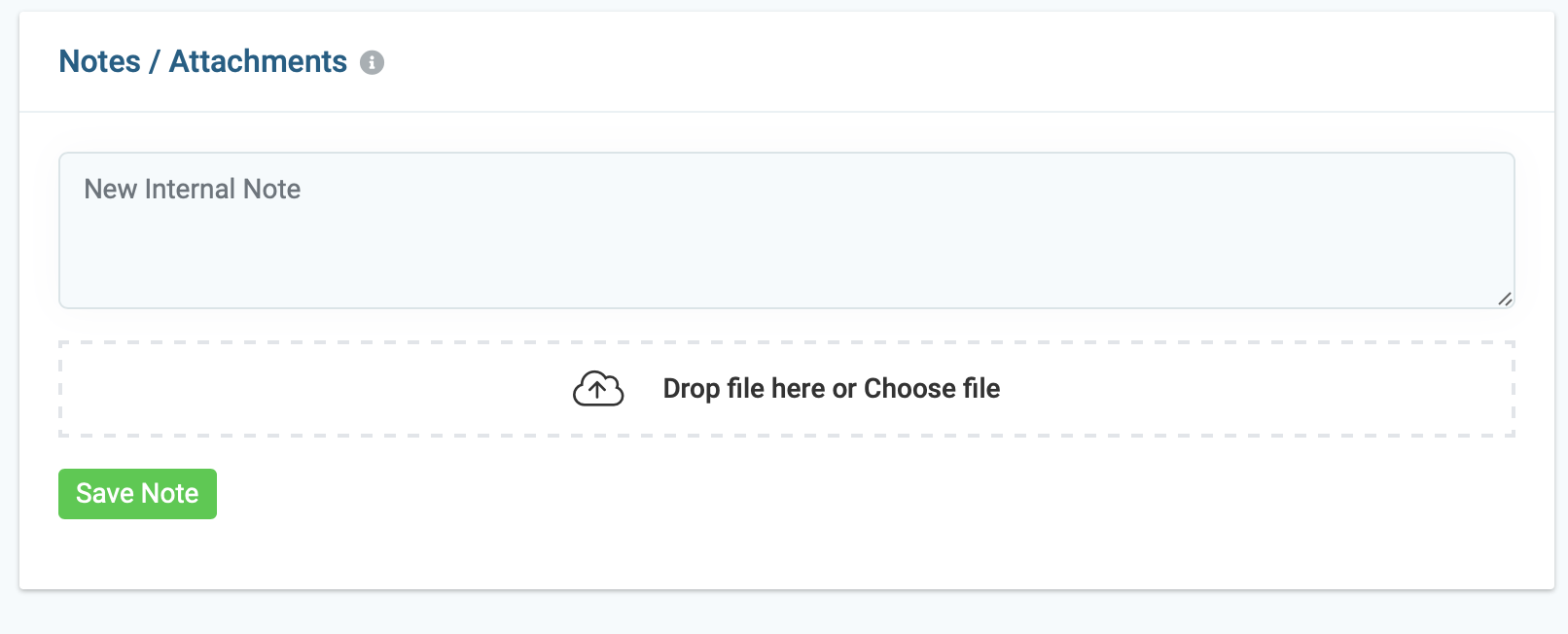
4) Now, add your notes and upload your files.
To add an attachment you can either drag and drop a file directly from your computer into the area labeled "Drop Files Here" or you can click "Choose File" and upload files from your computer then click save note.
Remove Attachments
1) You can remove attachments by clicking the pencil icon on the right side of the note. Next click on the trash located on the attachment.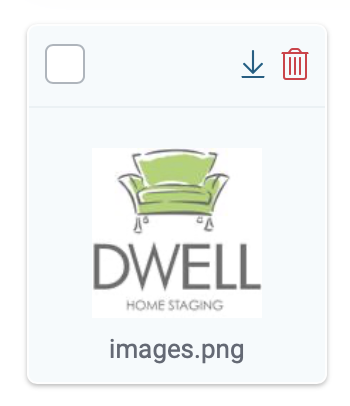
Download Attachments
1) You can download attachments by clicking the pencil icon on the right side of the note. Next, click on the down-pointing arrow located on the attachment
Email Attachments
1) You can email attachments by clicking the checkbox located on the attachment. Next, select email attachment from the bulk action menu.
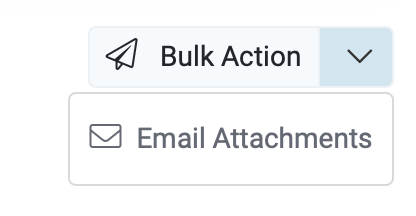
2) A new window will open. Make sure the correct email address is entered, add a message, and click the send button. It's that easy!