
You can convert a visit into a job with just one click. Let me explain what happens when you convert a visit. The system will create a new job document, assign it a job number, and copy all the customer information over so you don't have to. The two documents are now linked.
Step By Step Guide
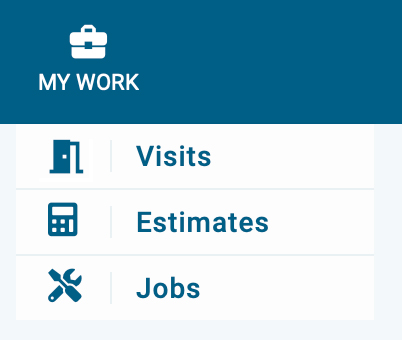
1) First, click the My Work section in the top navigation bar, then choose visits from the menu.
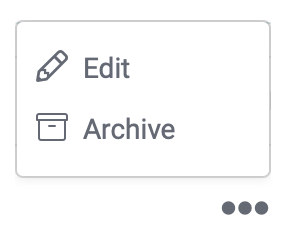
2) Now you're in the visit section. Search and locate the visit you intend to convert to a job. Next, click on the three dots which is located to the far right. Now select Edit from the menu.
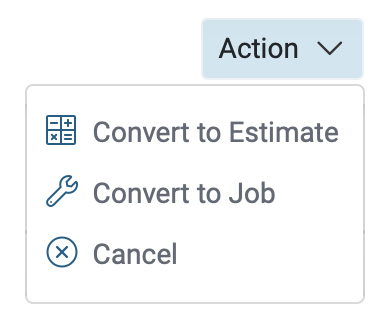
3) Now you're on the visit page. Click on the “Actions” button located in the upper right corner of the page and choose the option “Convert to job" from the menu.
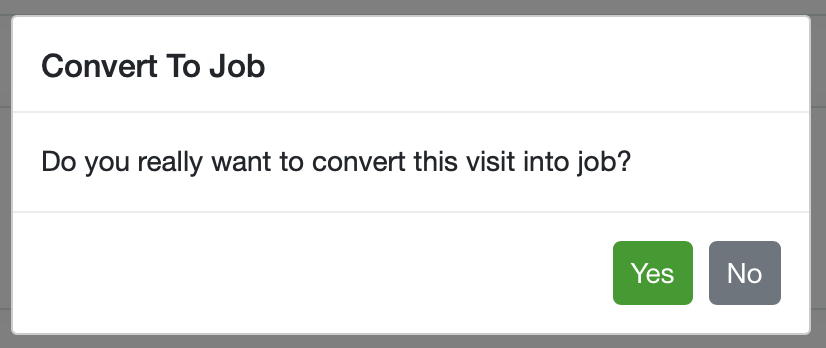
4) A pop-up box will open to confirm your selection, click yes.
5) Final step. Let's save the changes by clicking on the Save” button at the bottom right corner of this page. This visit is now converted to a job.

Now, if you look in the upper left corner, you'll notice the job number, a gear icon, plus an unscheduled status, and a lightbulb icon.
A) If you click on the gear icon, you can manually change the job number.
B) The unscheduled status will change once an action is taken. Example: If you schedule the job, the status will change to scheduled.
C) If you click the light bulb, it shows the converted details.
