
You can email estimates to your customers with just a few clicks. Once the customer receives the email they have the option to approve or decline the estimate. The job status will reflect their decision.
Step By Step Guide.
1) First, locate the estimate. You can do so by clicking the customer link located in the top navigation bar.

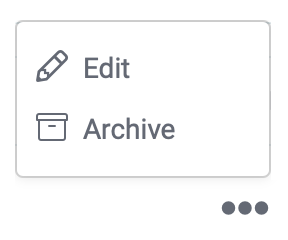
2) Now you see a list of all the estimates, locate the one you wish to send, and click on the three dots to the far right under the heading of Options and choose the edit option from the menu.
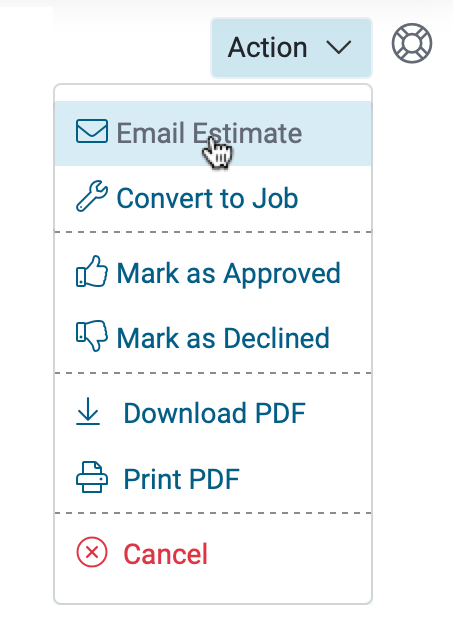
3) Now you're on the estimate page. Click on the “Actions” button located in the upper right corner of this page and choose the “Send estimate” option.
The customer email address is automatically prefilled in the send email pop-up box. You can make changes according to your requirements and then send this estimate to the customer.
Note: This is considered a customer notification. You can modify all notification templates by click on the more icon located in the top navigation bar then select settings and customer email templates.
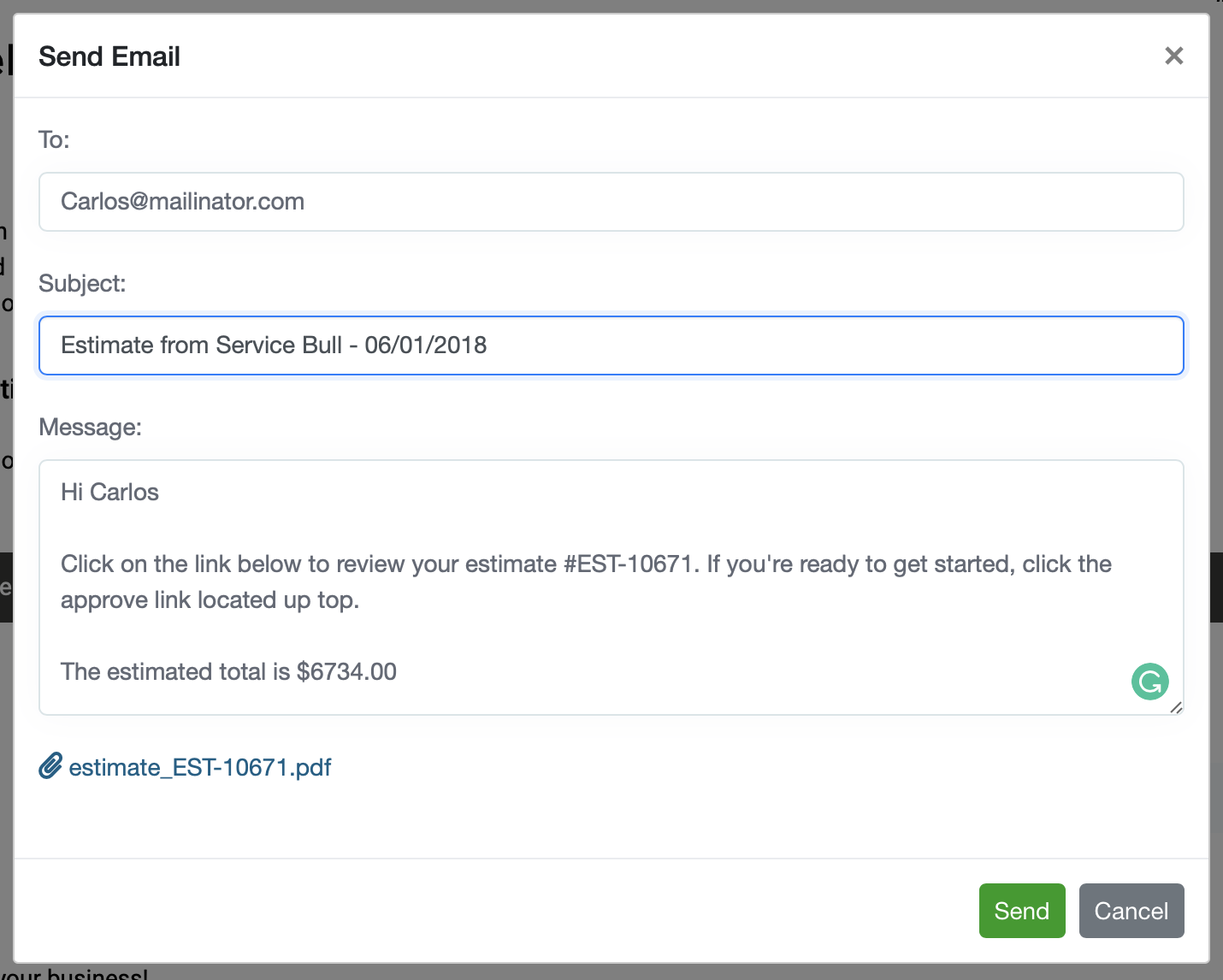
Now click send. If you look in the upper left corner, you'll notice that the estimated status now displays Sent to client. The status reflects the last action taken.