Step by step instructions If you find yourself in a situation where you have to reschedule a job.
Step By Step
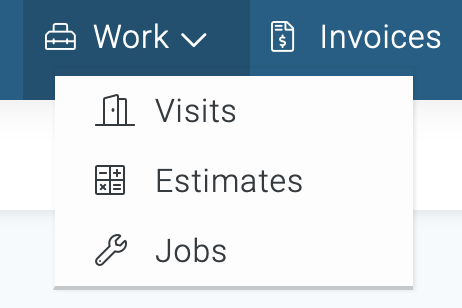
1) First, click on the Work Icon located in the top navigation, then choose Jobs.
2) Next, locate the job you plan to reschedule and click on the three dots symbol to the right of that particular job, under the heading of Options.

3) Now, choose the “Edit" option from the menu. Now you're on the job page.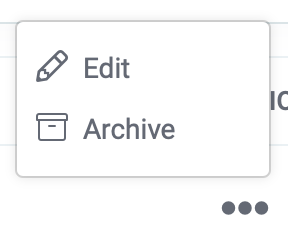
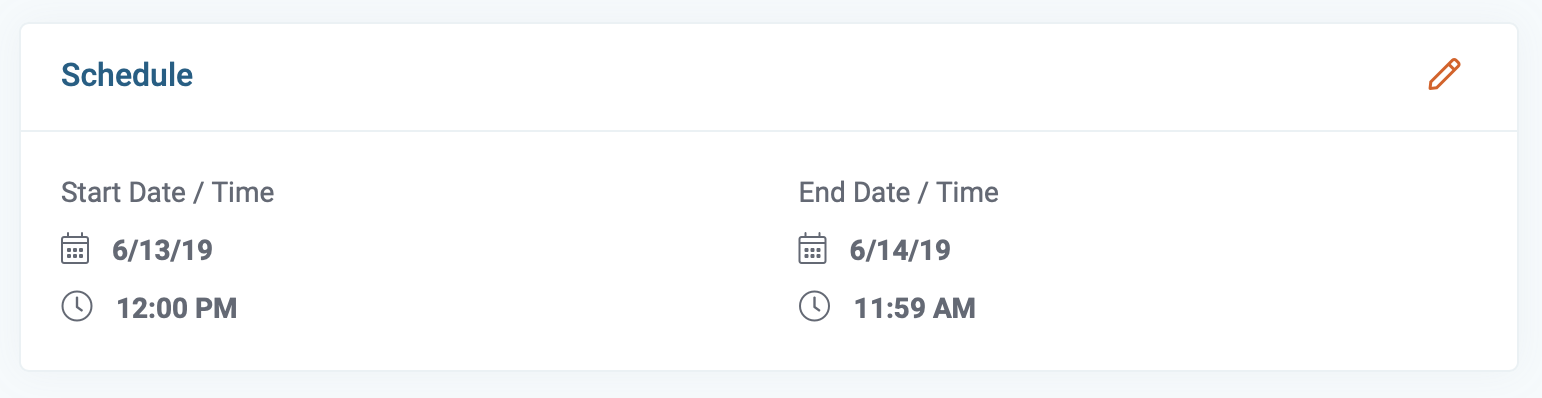
4) Click on the pencil icon. A new window will open labeled schedule job, make the necessary changes, and click on the done button. Check the box if you want to notify the customer with the updated date and time.
5) Next, save the changes by clicking on the Save button located in the lower-left corner of the page.