Follow the instruction below to unschedule a job.
Step By Step Guide
1) First, navigate to the job section. You can access the job section by clicking on the work icon located in the top navigation bar.
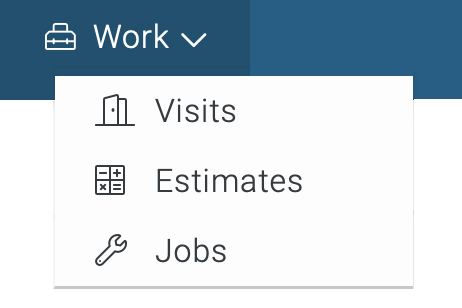
2) Next, search and locate the job you plan to unschedule. Once located you can click on the 3 dot's under the heading of "Options" and choose the "Edit" option from the menu.

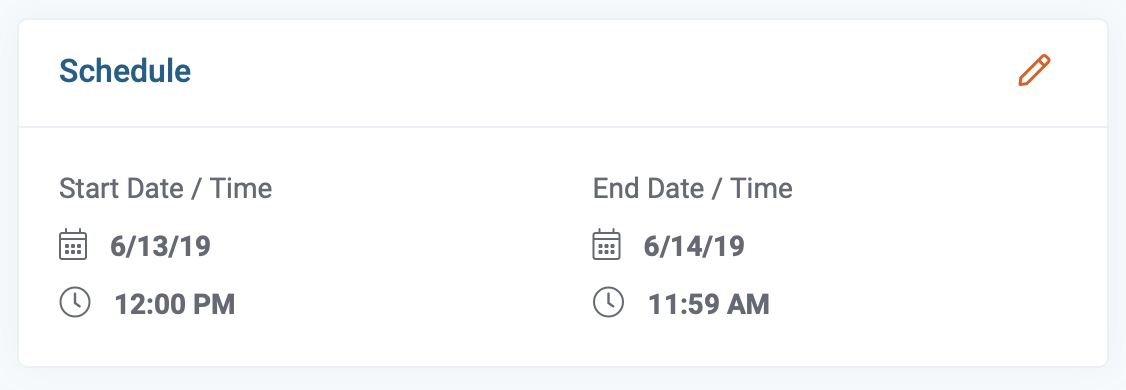
3) Now click on the pencil Icon on the top right corner of the Schedule box in the middle of the page. A box will pop up in front of you where you can change the time and date of this job.
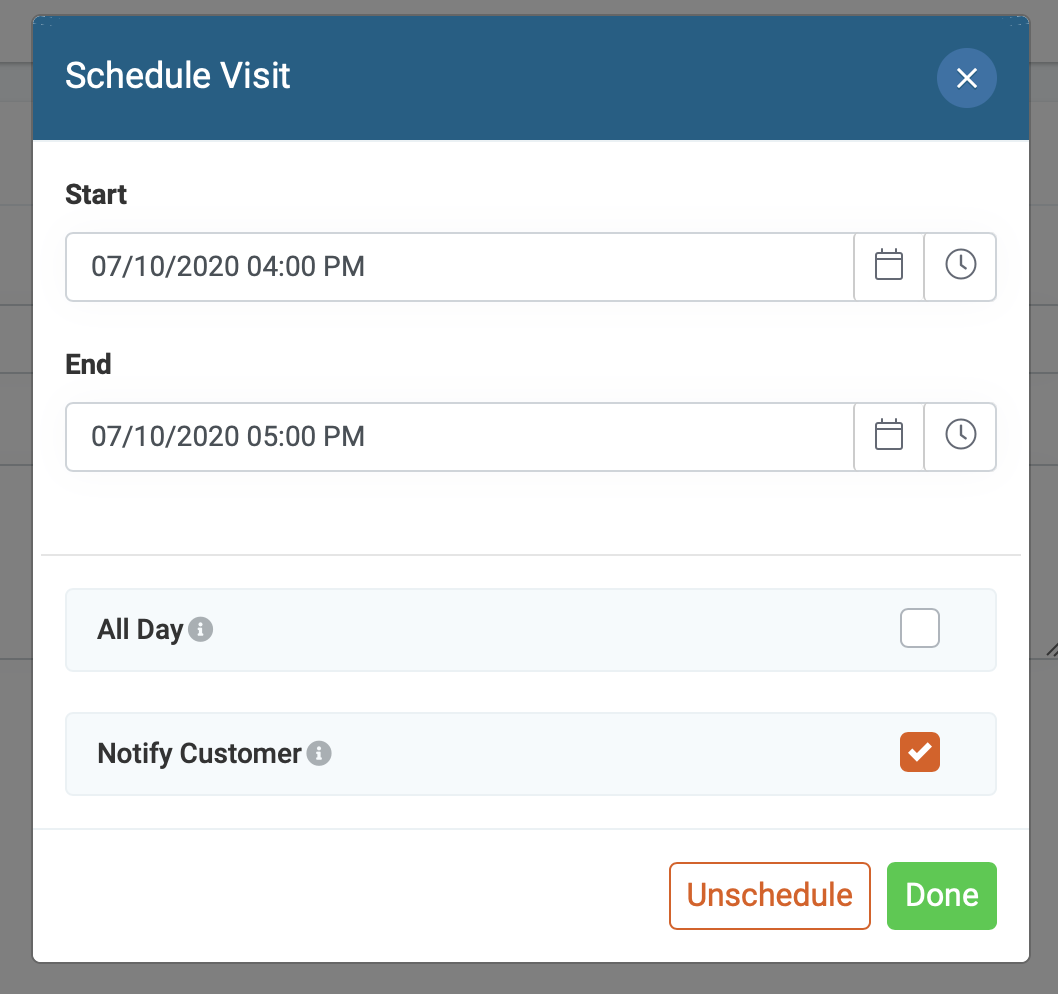
4) Now, click the unschedule button and click done.
5) Let's save the changes by clicking on the green “Save” button located in the lower-right corner of the main page.